top of page

HOW TO UPLOAD & DOWNLOAD

Follow these quick steps to send us your images and retrieve your final files.

UPLOADING

1) Open your order confirmation email and click the portal button.

An order confirmation receipt screen showing a unique transaction tracking key code and a highlighted upload portal activation button illustrating post purchase asset submission instructions for a Stylofuze commercial editing project | STYLOFUZE

2) Upload your image/s within 7 days.
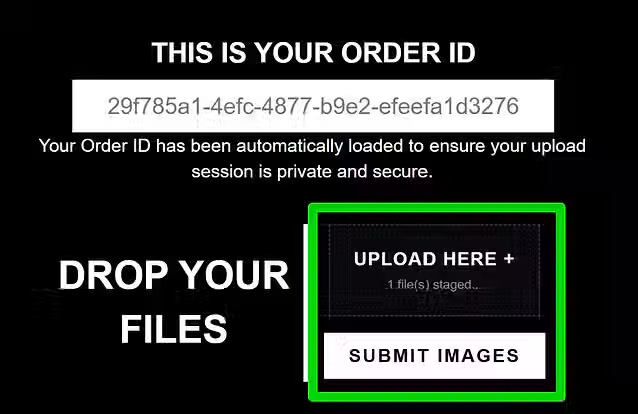
An online file staging dashboard interface containing an automated unique tracking code panel and a green highlighted image submission drop zone illustrating secure photo transfer steps for Stylofuze commercial editing clients | STYLOFUZE

Wait for the "Success! Your upload is complete."

A user interface dashboard showing a green order success notification box above an asset submission panel illustrating bulk file upload instructions and secure photo transfer workflow guidelines for Stylofuze commercial editing accounts | STYLOFUZE

DOWNLOADING

1) Open your email and click "View Your Gallery".

An order management system interface screen showing a unique reference tracking key code and a green highlighted view your gallery button illustrating finished digital asset delivery instructions for a Stylofuze commercial photography project | STYLOFUZE

2) Review your watermarked image preview.

Dramatic cumulonimbus storm clouds illuminated by sunlight with a semi transparent star graphic copyright protection overlay proofing indicating digital image download safety guidelines for a Stylofuze commercial photography gallery delivery | STYLOFUZE

Click "Download Your Image/s".

A website user interface dashboard element showcasing a bright green highlighted download button illustrating commercial image batch retrieval and secure file repository extraction functions for a finished Stylofuze creative design project | STYLOFUZE

Have questions? Check out our FAQ page.

bottom of page